Google Docs
Google LLCProductivity
4.777.96K Reviews
- Version
- Varies With Device
- Installs
- 1.00B
- Age Rating
- Everyone
Screenshots
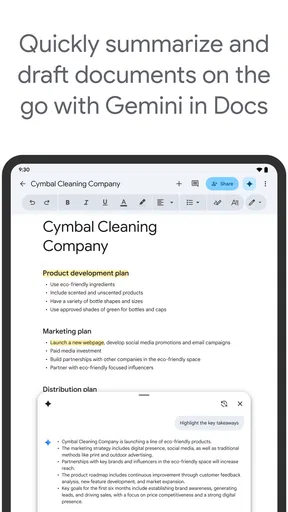
Our Review of Google Docs
 Analysis by Appyee
When it comes to getting stuff done on the go, Google Docs is like that trusty friend who's always there to help. If you haven't tried it yet, you're in for a treat. Let me walk you through my experience with this app, and why it's become a staple on my phone.
Why shared editing changes the way I work
The most useful thing about Docs, in my experience, is not simply that I can write on a phone. It is that a document can become a shared workspace instead of a file I have to pass back and forth. That shift matters when several people need to shape the same text: there is one working copy to discuss, rather than a trail of attachments with names like “final” and “final revised.”
Google LLC makes Docs as a free productivity app, and its reach is clear: it has over a billion installs and around 2.5 million ratings, with an average of 4.7. It is rated for Everyone. Those figures suggest that it has become a familiar tool, but popularity alone is not why I would choose it. I would choose it when sharing, commenting, and making small edits across devices matter more than advanced page design.
Getting Started with Google Docs
First things first, downloading Google Docs is a breeze. Head over to the Play Store or App Store, and you'll have it installed in no time. Once you're in, the interface is clean and straightforward, which I totally appreciate. No fuss, no muss.
What I love right off the bat is how easy it is to jump into creating a new document. Just tap that plus button, and you're off to the races. Whether you're drafting an essay, jotting down notes, or even collaborating on a project, the app makes it super simple.
Seamless Collaboration
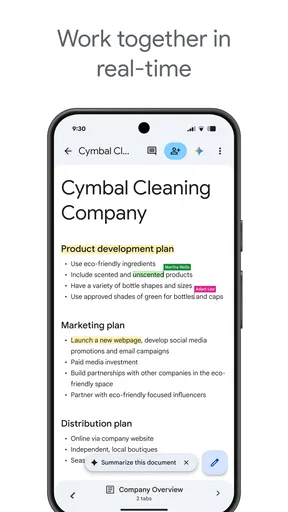
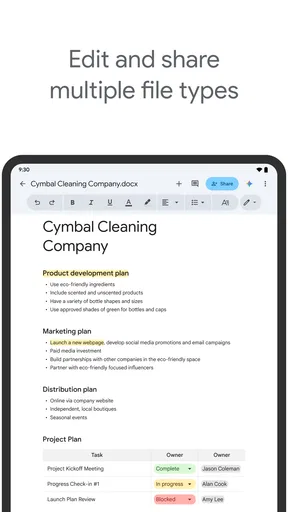
Speaking of collaboration, this is where Google Docs really shines. You can invite others to view or edit your document, which is perfect for group projects or getting feedback from teammates. I remember working on a presentation with a colleague, and we were both editing the document in real-time from our phones. It was like magic!
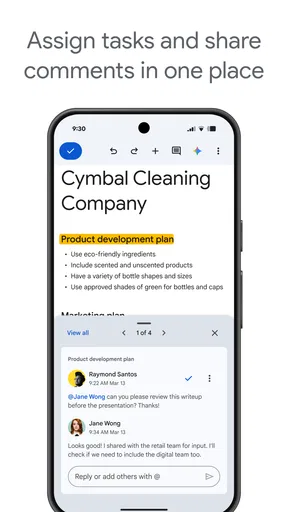
The comments feature is another lifesaver. You can add suggestions or questions directly into the doc, and your collaborators can respond. It's like having a mini meeting right there in the app.
A group project that stays in one place
For a practical example, imagine a few classmates dividing up a report. One person can shape the opening, another can add research, and a third can leave questions beside passages that need attention. Instead of gathering everyone around one screen, each person can contribute when available, then use comments to resolve specific points. I find that this works best when the group agrees on a simple structure first: headings for each section, a note about who is handling it, and a clear point at which someone checks the whole draft for consistency.
There is a trade-off to that convenience. Real-time access makes it easy to contribute, but it can also make a document feel busy if several people are changing the same paragraph. I recommend using comments for suggestions that are not ready to become edits, and assigning sections when the writing needs a consistent voice. Shared editing is most valuable when collaborators have a light process, not when everyone is making uncoordinated changes at once.
Offline Access
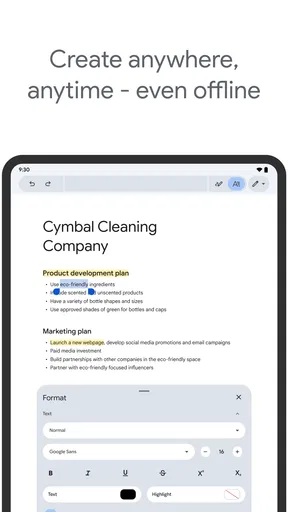
One of the standout features for me is offline access. Sometimes, I'm in places where Wi-Fi is spotty, but with Google Docs, I can still get work done. Just make sure to enable offline access for your documents beforehand. Trust me, it'll save you a ton of headaches when you're without internet.
Plan around connection gaps
Offline work is useful for a commute, a flight, or a building with unreliable service, but it rewards a little preparation. I make sure the document I need is available before leaving a reliable connection, rather than assuming every file will be ready at the moment I open it. That small habit turns offline access from a backup hope into a workable routine. When I reconnect, I also give the document a moment to catch up before asking collaborators to review the latest changes.
If your work depends on frequent input from other people, a connection gap changes the rhythm: you can keep drafting, but you cannot expect a live exchange while disconnected. For private notes or a first draft, that is rarely a problem. For a decision that requires immediate agreement, I would wait until everyone can communicate, or use a channel suited to that conversation and return to the document afterward.
User-Friendly Features
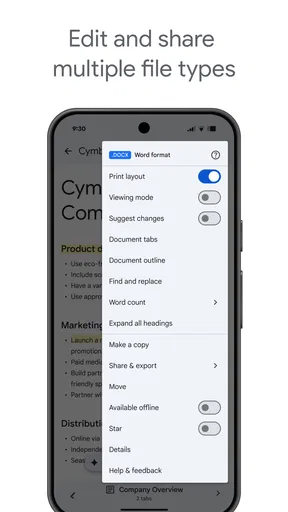
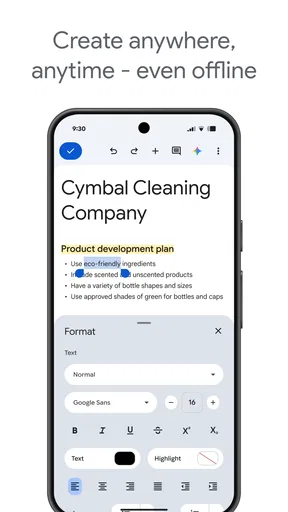
The formatting tools are pretty robust for a mobile app. You can add bullet points, change fonts, and even insert images. It's almost like having a mini word processor in your pocket. Plus, the voice typing feature is a game-changer. If you're like me and sometimes just want to dictate your thoughts, it's incredibly accurate and convenient.
Another cool thing is the integration with other Google apps. You can easily pull in data from Sheets or add charts and tables. It's all interconnected, which makes managing different types of content a breeze.
Making a phone-sized workflow practical
I treat the mobile editor as a strong place to capture, revise, and coordinate, rather than as a perfect substitute for a large-screen writing setup. On a phone, I can fix a sentence, outline a section, or add a short comment while an idea is fresh. For a long report with many layout decisions, a laptop is more comfortable because it is easier to scan the whole page and make careful adjustments. The advantage is continuity: I can make useful progress on the same document without waiting to get back to my desk.
Voice input is particularly handy for getting a rough thought down while walking or between appointments, but I would still review dictated text before sharing it. Spoken phrasing can be less tidy than edited prose, and names or punctuation may need attention. A good workflow is to dictate the idea, then use a later editing pass to organize it. That makes voice typing a drafting aid rather than a replacement for proofreading.
For structured information, I would not force everything into paragraphs. A short list is easier to scan when the task has steps, while a table can help when readers need to compare items. If the document relies heavily on complex calculations or ongoing data entry, a spreadsheet is a better home for that material; Docs is more useful for explaining what the figures mean and keeping the narrative alongside them.
Security and Privacy
In today's age, security is a big deal, and Google Docs doesn't disappoint. Your documents are stored in the cloud, which means they're safe and sound even if you lose your device. Plus, you can set permissions to control who can view or edit your docs, so your sensitive info stays just that—sensitive.
Choose access deliberately
Sharing is powerful, so I would pause before inviting someone to edit when they only need to read. Matching access to the task keeps a review focused and reduces the chance of accidental changes. For sensitive material, I would also double-check the sharing choices before sending the document; convenience is not a reason to treat every draft as suitable for broad access. Cloud storage helps make a document available across devices, but it is still worth thinking carefully about who should see it.
A related question is whether Docs replaces every writing tool. I do not think it does. Compared with a traditional word processor, its strongest everyday distinction is the ease of shared drafting and comments. A dedicated desktop editor may suit someone who needs detailed page layout or a highly controlled print-ready file. A notes app may be quicker for fleeting reminders. Docs sits in the middle: more structured than a quick note, but especially convenient when a document needs to move between people.
Where it fits—and where it doesn't
I would recommend Docs to students coordinating assignments, colleagues reviewing drafts, and anyone who wants to keep ordinary writing accessible across their devices. It is also a sensible choice for a person who often needs to capture an idea away from a desk and refine it later. Its practical strength is not that every task becomes effortless; it is that the document and its discussion can stay together.
I would look elsewhere if my main job were intensive desktop publishing, highly precise page composition, or detailed spreadsheet work. I would also avoid relying on a shared document as the sole place for a conversation that needs an immediate answer. Choosing the right tool is less about declaring one app best and more about matching the task: Docs for collaborative writing, a specialist editor for demanding layout, and a spreadsheet for calculations that need to be manipulated directly.
Final Thoughts
All in all, Google Docs is a powerhouse for productivity. It's intuitive, flexible, and packed with features that make working on the go not just possible, but enjoyable. Whether you're a student, a professional, or just someone who likes to stay organized, this app has got your back.
If you haven't given it a spin yet, I'd highly recommend downloading it and seeing for yourself. Who knows, it might just become your new favorite tool for getting things done!
Privacy and Permissions
See what permissions an app requests and how it handles your data.
- Identity
- find accounts on the device, add or remove accounts
- Contacts
- find accounts on the device, read your contacts
- Photos/Media/Files
- read the contents of your USB storage, modify or delete the contents of your USB storage
- Storage
- read the contents of your USB storage, modify or delete the contents of your USB storage
- Microphone
- record audio
- Wi-Fi connection information
- view Wi-Fi connections
- Other
- view network connections, measure app storage space, full network access, change your audio settings, read sync settings, run at startup, use accounts on the device, control vibration, prevent device from sleeping, toggle sync on and off, install shortcuts, read Google service configuration
How Google Docs Compares
Full ComparisonChoose Google Docs for straightforward team editing, Word for detailed document formatting, or Microsoft 365 Copilot for AI-assisted work across Microsoft apps.
| App | Developer | Rating | Price |
|---|---|---|---|
 Google DocsThis App | Google LLC | 4.7 | Free |
 Microsoft Word: Edit Documents | Microsoft Corporation | 4.8 | Free |
 Microsoft 365 Copilot | Microsoft Corporation | 4.4 | Free |
Verdict
Strengths of Google Docs
- Seamless collaboration features.
- Real-time editing and tracking.
- Accessible from any device.
- Robust version history.
- Integration with other Google apps.
Limitations of Google Docs
- Limited offline functionality.
- Formatting can be inconsistent.
- Requires a Google account.
- Limited advanced features.
- Occasional syncing delays.
Other Releases by Google LLC
View All
Google Calendar
Productivity4.6

Google Messages
Communication4.6

Tools4.0

Google TV
Video Players & Editors3.9
Similar Picks in This Category
View AllGoogle Calendar
Google LLC4.6

Google Drive
Google LLC4.3

Google Assistant
Google LLC3.9

Microsoft OneDrive
Microsoft Corporation4.6

Samsung Calendar
Samsung Electronics Co., Ltd.4.1

Microsoft OneNote: Save Notes
Microsoft Corporation4.6
You May Also Like
View All


Frequently Asked Questions
What platforms is Google Docs available on?
Google Docs is available on a variety of platforms, including Android and iOS devices, as well as through web browsers on desktops and laptops. This versatility allows users to access and edit their documents from virtually anywhere, ensuring seamless productivity across different devices without compatibility issues.
Can I use Google Docs offline?
Yes, Google Docs offers offline functionality. To use it offline, you need to enable offline access in your Google Drive settings. Once set up, you can create, edit, and view documents without an internet connection, and any changes will sync automatically once you’re back online.
Is collaboration possible in Google Docs?
Google Docs excels in collaboration features. You can share documents with others, allowing them to view, comment, or edit simultaneously. Changes are tracked in real-time, and users can communicate through comments, making it an ideal tool for teamwork and collaborative projects.
How secure is my data in Google Docs?
Google Docs employs strong security measures, including encryption in transit and at rest. Your data is stored securely on Google’s servers, and you have control over who can access your documents. However, it’s always good practice to use strong passwords and enable two-factor authentication for added security.
Are there any limitations to using Google Docs for free?
While Google Docs is free to use, it does come with some limitations. Free users get 15GB of storage shared across Google Drive, Gmail, and Google Photos. Additionally, some advanced features, like enhanced support and administrative controls, are available only to Google Workspace subscribers.
